A step-by-step guide to transforming your boring Windows setup into something you'll actually enjoy using.
Let's Make It Beautiful!
I've been getting the same question about: "How do you make your Windows look so different?"
Look, I wasn't really planning to share this hardcore nerdy stuff I do on my computer. But since so many of you keep asking, here we are. Because let's be honest - Windows looks terrible out of the box. It's boring, it's ugly, and frankly, it just feels outdated.
So I'm going to show you exactly how I transform my Windows setup into something I actually enjoy looking at every day. By the end of this guide, you'll have translucent windows, a custom top bar with system info, a sleek cursor, and even a modded Spotify that doesn't assault you with ads and recommendations you never asked for.
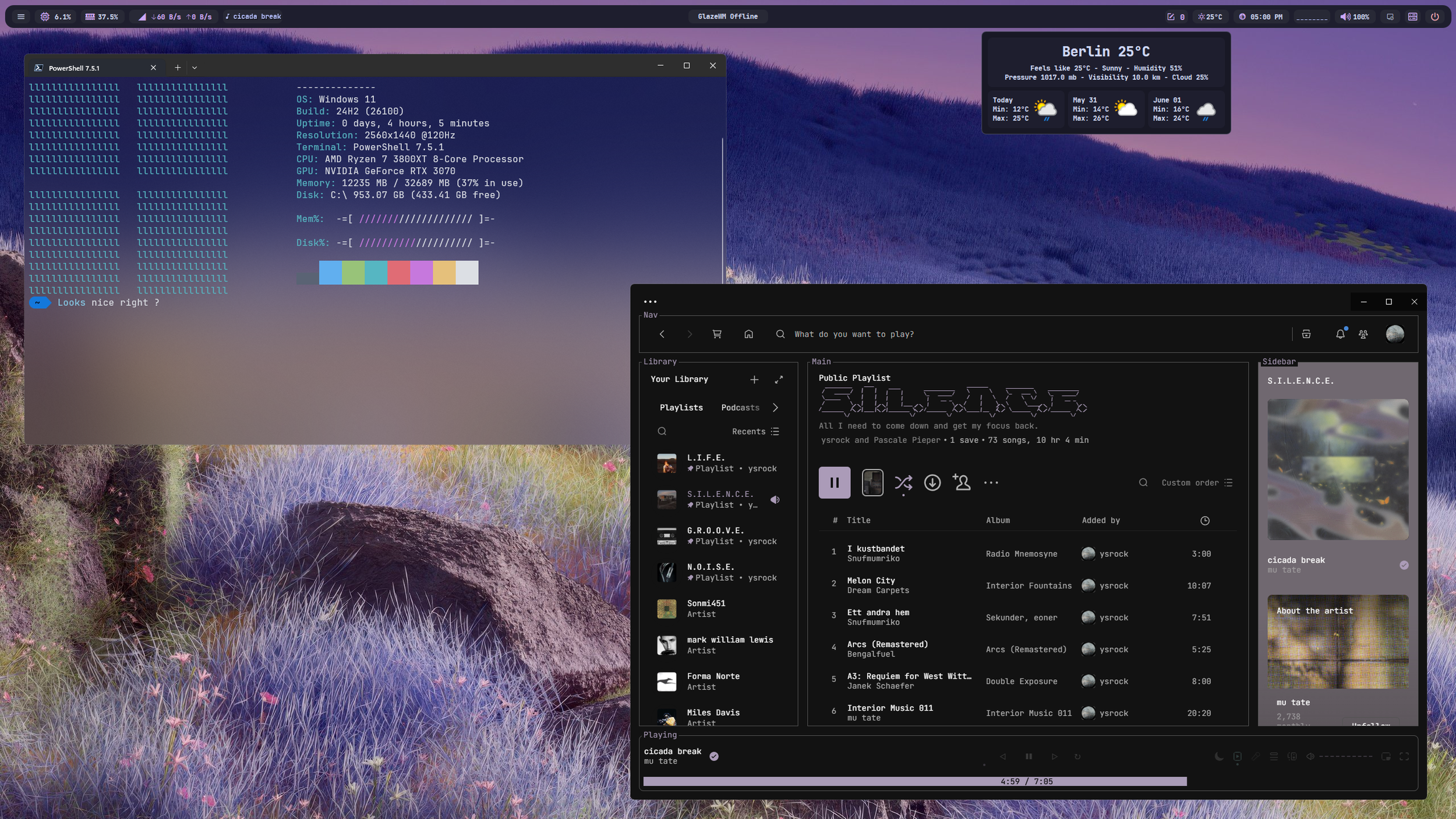
What We're Building
Before we dive in, here's what your setup will look like when we're done:
- Translucent windows that show your background through apps
- Custom top bar displaying time, date, CPU usage, and network stats
- New cursor that actually looks modern
- Modded Spotify with themes, ad-blocking, and useful extensions
- Clean, minimal aesthetic that makes Windows feel fresh again
The best part? All of these mods are lightweight. I specifically chose tools that won't eat up your RAM or slow down your system. Everything stays snappy.
Step 1: Get a Proper Cursor
Let's start with the easiest change that makes the biggest visual impact - your cursor.
I use a custom cursor pack that you can find online (I'll link everything at the end). Here's how to install it:
-
Download the cursor pack
-
Go to Settings > Additional mouse settings
-
Click on the Pointers tab
-
Browse to your downloaded cursor folder
-
Manually change each cursor type to match the new pack
-
Don’t forget to save the preset!
Trust me, a new cursor completely changes the aesthetic. It's like getting new glasses - suddenly everything feels different.
Step 2: Translucent Taskbar
Next up is making that boring taskbar at the bottom disappear when you don't need it.
Download TranslucentTB from the Microsoft Store. It's that simple:
-
Install TranslucentTB
-
Run it
-
Your taskbar is now translucent
-
Automatic hide the taskbar should be also on
When you open apps, you'll barely see the taskbar in your tutorials or screenshots. It's clean, minimal, and just works.
Step 3: Translucent Windows (The Game Changer)
This is where things get interesting. We're going to make all your windows have translucent backgrounds.
You'll need to grab the tool from GitHub (search for Windows translucent background tool). Here's the process:
For Command Prompt/Terminal:
- Open Windows Terminal settings
- Enable Acrylic material
- Set Transparency to 20%
- Change font to JetBrains Mono (Retro vibes on)
- Save your settings
For All Windows:
- Download the GitHub tool (look for the latest release)
- Create a folder called "Windows Modding" on a secondary drive
- Extract the tool there
- Run the application
- Set blur radius to 50
- Change text color to white
- Save everything
Now every window you open will have that beautiful translucent effect. It's like having a completely new operating system.
Step 4: Custom Top Bar
The default Windows taskbar is... not great. Let's replace it with something that actually gives you useful information.
Download the custom top bar tool from GitHub:
- Download JetBrains Mono font first
- Get the MSI installer from the releases page
- Create a new folder in your Windows Modding directory
- Run the installer and point it to your new folder
- Launch the application
- Enable auto-start in settings
- Go to Get Themes and choose one you like
Now you'll see time, date, system stats, and everything you actually want to know at a glance. Plus, it looks way better than the default Windows bar.
Pro tip: Right-click and open the config file to change your location from whatever random place it defaults to. You can also change many more things inside here but, have in mind to make a backup.
Step 5: Spotify That Doesn't Suck
Finally, let's fix Spotify. The default experience is just ad-filled garbage that tries to push music you don't want.
Here's how to get Spotify Spiced (the modding tool):
-
Copy the installation command from the Spiced GitHub page
-
Open Command Prompt as administrator
-
Paste the command and hit enter
-
Allow it to install the marketplace
-
Restart Spotify
Now you'll see a new Marketplace button next to Home. Click it and you'll find:
Extensions I recommend:
- AdBlock - No more interruptions
- Sleep Timer - Perfect for ambient sessions
Themes:
- Choose whatever matches your vibe
- I prefer darker, cleaner themes
Snippets:
- Auto-hide Friends - I don't use it, so it's gone
- Rounded UI elements - Makes everything look more modern
- Remove Popular Sections - Goodbye to Spotify's recommendations
The result? A clean, personalized Spotify that focuses on your music instead of trying to monetize your attention.
Why I Actually Do This
Look, I spend a lot of time on my computer. Whether I'm producing music, creating content, or just browsing, I want my digital environment to feel good. These modifications make Windows feel modern, clean, and actually pleasant to use.
Plus, there's something satisfying about customizing your tools. It's like organizing your studio or workshop - when everything looks and feels right, you're more motivated to create.
A Few Warnings
- Always scan downloaded files for viruses
- Create a backup before making major changes
- Test everything before committing to the setup
- Some modifications might break with Windows updates
I've tested all these tools and they're lightweight and safe, but be smart about it.
The Bottom Line
Computers should work for you, not against you. If you're going to stare at Windows all day, it might as well look good and function the way you want.
This setup gives me a clean, distraction-free environment that actually enhances my productivity instead of fighting against it. Your mileage may vary, but if you're interested in making Windows suck less, now you know how.
What modifications do you make to your setup? Let me know - I'm always looking for new ways to optimize my workflow.
Tools mentioned in this post:
Note: Always download from official sources and scan files before installation.