You have your arrangement jammed in, but for me a track is not done yet at that point. There are a few little things I always do before I call something finished: add small details on the drops, clean up the mix, build a simple master chain, and then actually export the thing correctly. This is the last part of the course, so let's get your first track out the door.
In this part:
- Adding FX channels and small details on every drop
- Checking your mix and cutting low end where it does not belong
- Building a simple master chain with a limiter
- Sample rate, bit depth and dithering explained
- Exporting your first finished track, including stems
How do I add small details and FX to my arrangement?
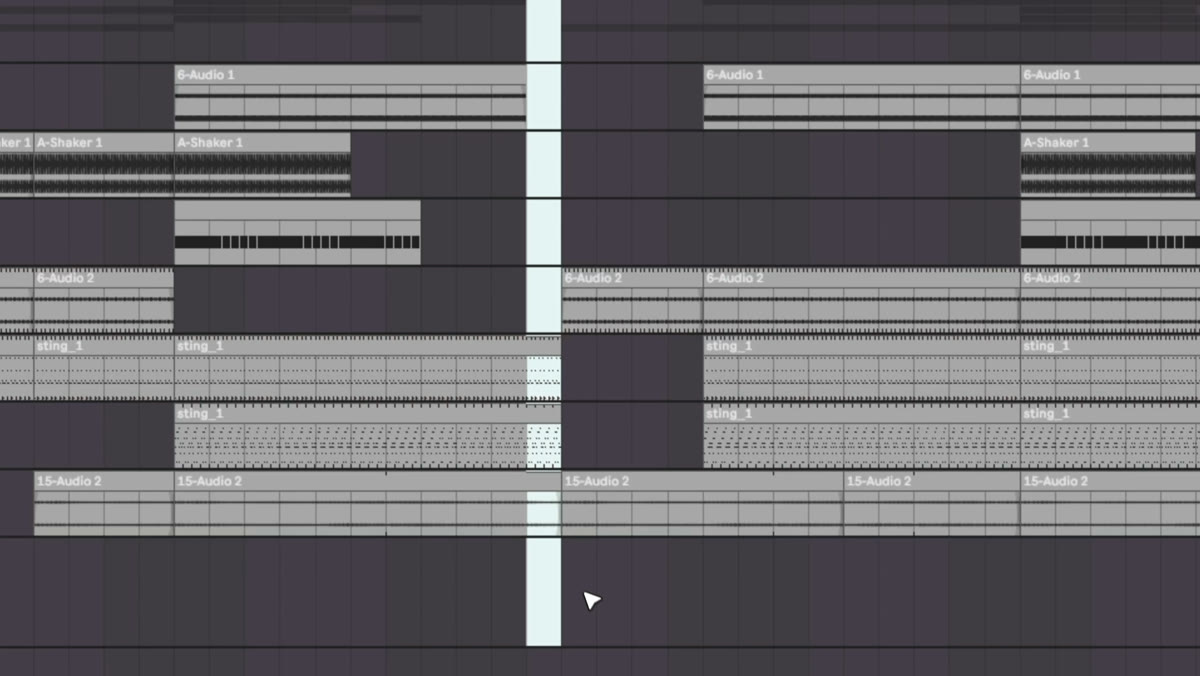
First I add two audio channels called "FX" (duplicate one with Cmd+D), just for little sounds that happen once in the track. Then I go through the arrangement and look at the moments where a row change happens, the drops, and add small variations there. For example, right before a big drop, cut one bar of every sound out and keep just one element, that always comes out cool.
Bring back the browser with Cmd+F and search for FX sounds you can grab and drop in. If you click on a sample and hit Shift+Tab, you get the sample manipulation window with the warp mode, where you can reverse a sample, squeeze it so it really hits with the drop, and use the little knob on the clip to make an easy fade in. Do this kind of detail work in small moments all over the arrangement, cutting an element out here and bringing it back there, and it lifts the track above just a looped section.
How do I check and clean up my mix?
Once the details are in, I check that my volumes are actually where I want them. You can select a section and hit Cmd+L to loop just that area while you listen and mix. I would not go back into sound design at this stage, just make adjustments if something needs it.
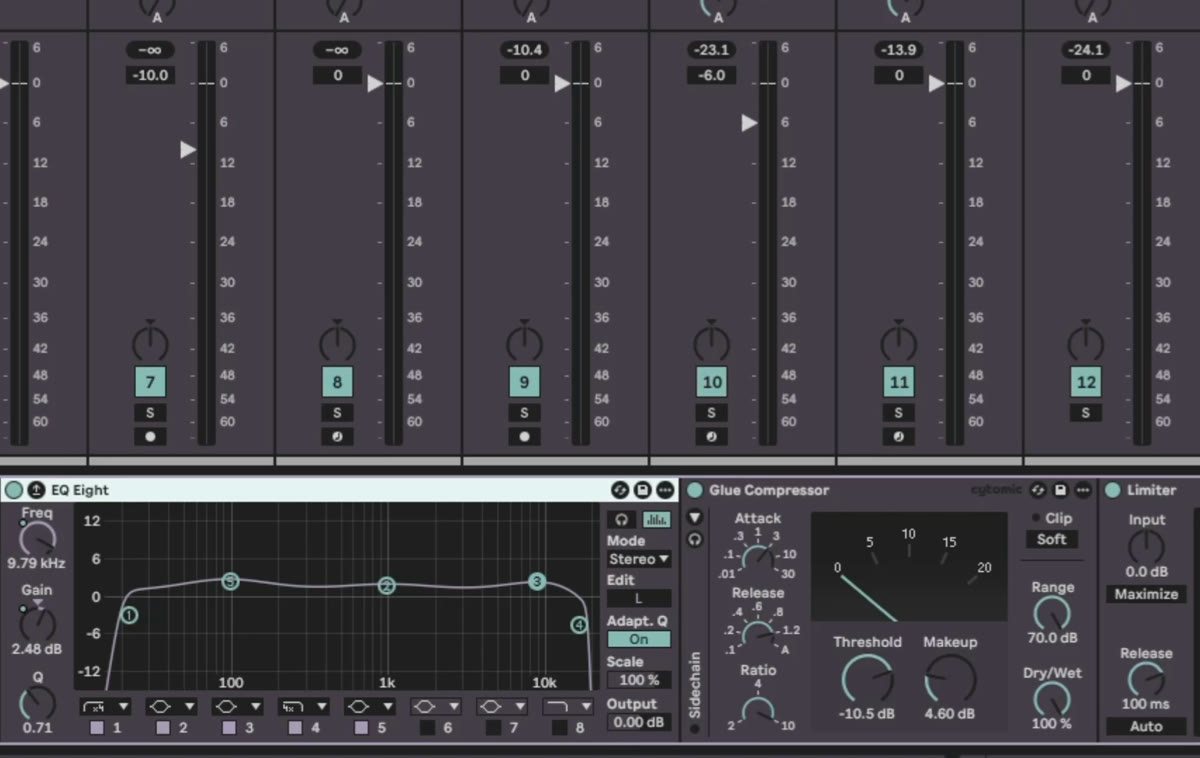
Then clean up with EQ. Everything that is not your kick or bass line does not need space in the low end, so cut frequencies under 100 Hz with EQ Eight on those channels, for example the pad or a reverb return channel. Copy that same EQ onto anything else that does not need low end. That alone cleans up the whole mix.
How do I build a simple master chain?
On the master channel I run my own preset: a little saturation on lows and highs, less on the mids, an EQ to clean up the side signal, and another EQ just for taste, a bit more bass or highs depending on the track. Sometimes I compress, sometimes not. What matters most for you is the limiter at the end, with the ceiling at minus 1 dB. That is a must have to finish a track, since streaming platforms will normalize your music anyway.
One rule: never touch the master fader itself, it stays at zero. If your mix gets too loud and goes into the red, bring your whole mix down instead, not the master. Turning the master down just gives you the illusion that it is fixed while the actual metering still tells you something is wrong. This is not deep mastering, just the basics you can do with Ableton's own tools, no extra plugins needed.
What are the right export settings?
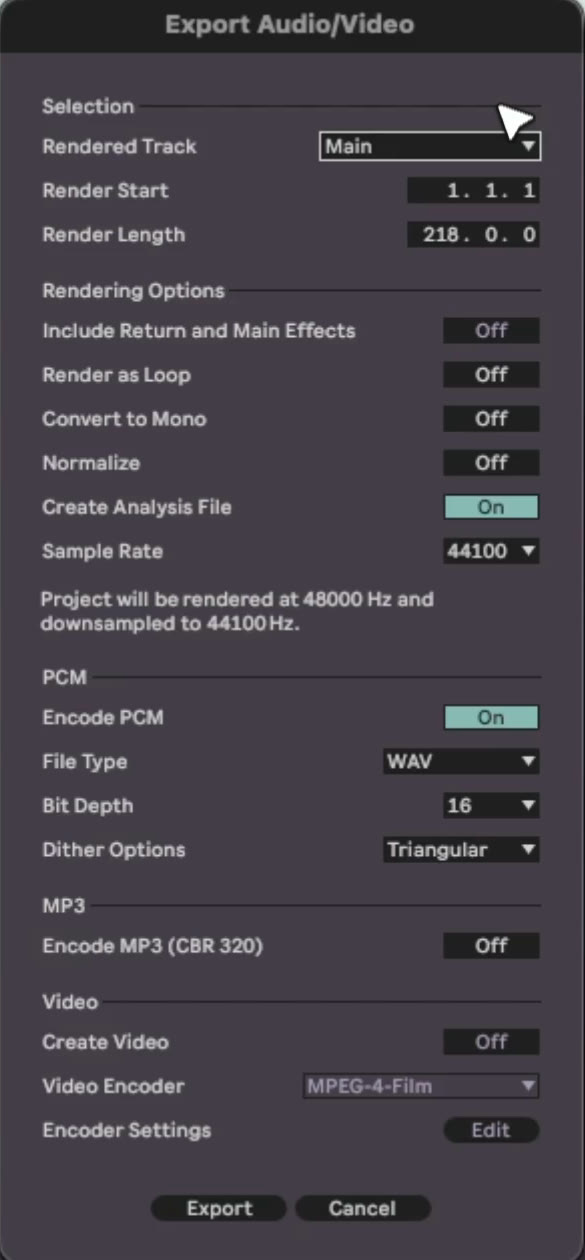
Never underestimate Cmd+S. Save the project first. Before you export, check for tails, in my case a reverb tail from Valhalla on a return channel, and extend your selection to the end of that tail so it does not get cut off. Select the full arrangement and hit Shift+Cmd+R to open the export window.
Choose "Main" if you just want your master mix, or "All individual channels" if someone wants the stems to remix the track. Turn normalize off, do not render as a loop, and turn file analysis off. For a track you are finishing for the club, set the sample rate to 44.1 kHz, choose WAV, 16 bit, and use triangular dithering, only once, since dithering stacks and degrades the track if you render it repeatedly with it on. If you are sending the track to a mastering engineer or someone who still wants to work on it, export at 48 kHz, 24 bit, with no dithering, so they can add it themselves at the end.
Where to go from here
That is the course. If you finished this and you are into Ableton now, my channel has a lot more, the advanced stuff, sound design and generative patches like the ones from earlier parts. And on my website you will find tools that can help along the way. Thanks for being here through all ten parts.
If you want feedback on your first finished track, I offer written feedback, calls and mentorship: https://mordio.online/teaching
Previous: Part 9: From loop to track. That's the whole course. The full playlist with all ten parts is here: youtube.com/playlist.