From Loop to Track
19:51 · BEGINNER · FREE
Notes
After jamming with MIDI generators and return channels for a while, you end up with way too many channels in Session View. That is the point where a lot of beginners get stuck: how do you turn all these loops into an actual track? In this part I clean up my session, build loop rows, and jam the whole arrangement in instead of drawing it left to right by hand.
In this part:
- How to get an overview when Session View is full of channels
- Grouping channels so the session stays readable
- Building loop rows as little arrangement packages
- Recording your arrangement live with global record
- Fixing small mistakes after the jam
How do I organize a messy Session View?
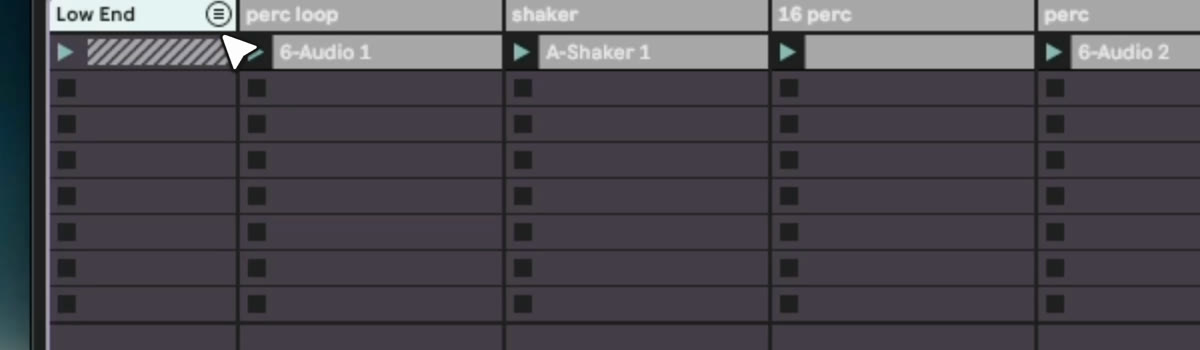
In this example I ended up with 10 channels of music. First thing I do to get an overview is press Option+Cmd+B to close the browser, or you use the same button up in the interface. Then I listen through everything I have and group what makes sense.
I put my two kicks and my bass line into one group, because I want to split the low end from the rest. Select all three, Cmd+G to group, then Cmd+R to rename, and I call it "low end". Same thing for everything drum related in the higher frequencies, hi-hats and shakers, grouped and named "percussions". Suddenly the session looks a lot cleaner and you actually know what you are looking at. This session already had the kind of generative patches from Part 8: MIDI effects running in it, so grouping matters even more once things start generating on their own.
Session View or Arrangement View: what is the difference?
A lot of beginners are a little scared of the Arrangement View. If you come from other software, you probably just work on a timeline from left to right and never really learn the way of listening to a loop first. In Session View there is no time, it is just things evolving, and that keeps me more generative than working straight on a timeline. Both ways work, there is no single correct one, I am just showing you my way.
How do I build loop rows for a live arrangement?
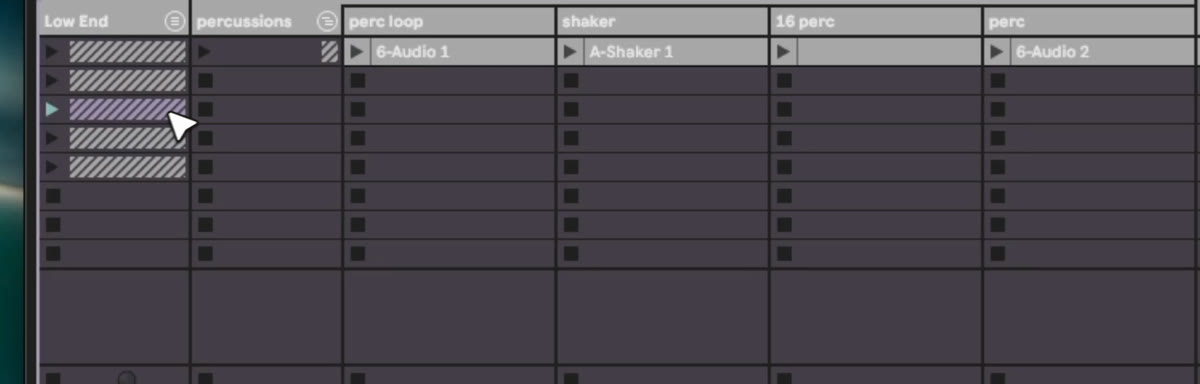
At some point you want to go from a loop to an actual arrangement, and the way I do that is by building little loop packages across rows in Session View, so I can play them up and down live.
- Open up everything so you know what you have to work with.
- Build variations per row. The first row can be the full thing, playing everything. On the next row you might stop the kick, or keep just an off kick, or drop the percussion and keep only the pad.
- Color the clips that mark a change, so you have a visual indicator of what happens in that row when you look at the session later.
- To copy a clip, hold Option while you drag it. To duplicate a whole row, use Cmd+D and then delete the clips you do not want in the new row.
- Every clip has a loop brace with two markers. The first one is where playback restarts every time you start the clip again, the second one sets the loop length inside the clip.
How do I record my arrangement live?
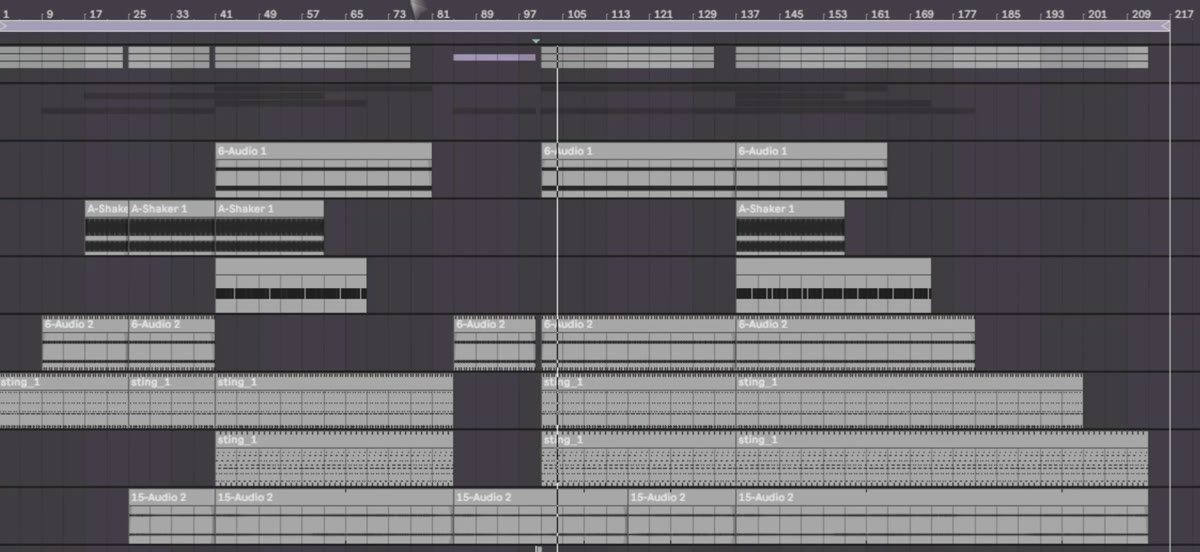
Once you have a handful of rows that all sound a little different, some fuller, some with fewer elements, you are ready to jam. I double click the little record indicator up top so it shows "1, 1, 1", which means recording will start from the very beginning of the arrangement. Then I hit record and just play, going from a full row to a softer row, closing some clips, opening a bigger row again, really ping ponging between the rows I built. That is jamming your arrangement live, and for me that is way more fun than drawing everything in by hand.
What to try now
After you stop recording, click the button at the top that switches playback back to what is actually in the arrangement, otherwise it just plays whatever loop you still have selected in Session View. To clean up the track view, hold Option while you resize one track and it resizes all of them at once, so you get a good overview. Then go through what you recorded and fix small things, like a clip that got colored at the wrong moment while you were jamming.
Try building three or four loop rows from one of your own loops and record yourself jamming between them. You will be surprised how close that gets you to a real arrangement.
If you want to see how I build a full system in Session View, every sound made in Operator, that is my Running System III template: https://mordio.online/shop/running-system-iii
Previous: Part 8: MIDI effects. Next: Part 10: Finishing and exporting.